The best photo restoration software depends on the photo problem, your privacy needs, and how much manual control you want. For most families restoring one or two damaged portraits, an online AI restoration tool is the fastest first choice. For archivists, photographers, or high-value originals, desktop editors and open-source workflows provide better review control.
Use this guide to match the tool to the job instead of chasing the most aggressive enhancement. A good restoration should repair damage while preserving identity, age, clothing, paper texture, and family context.
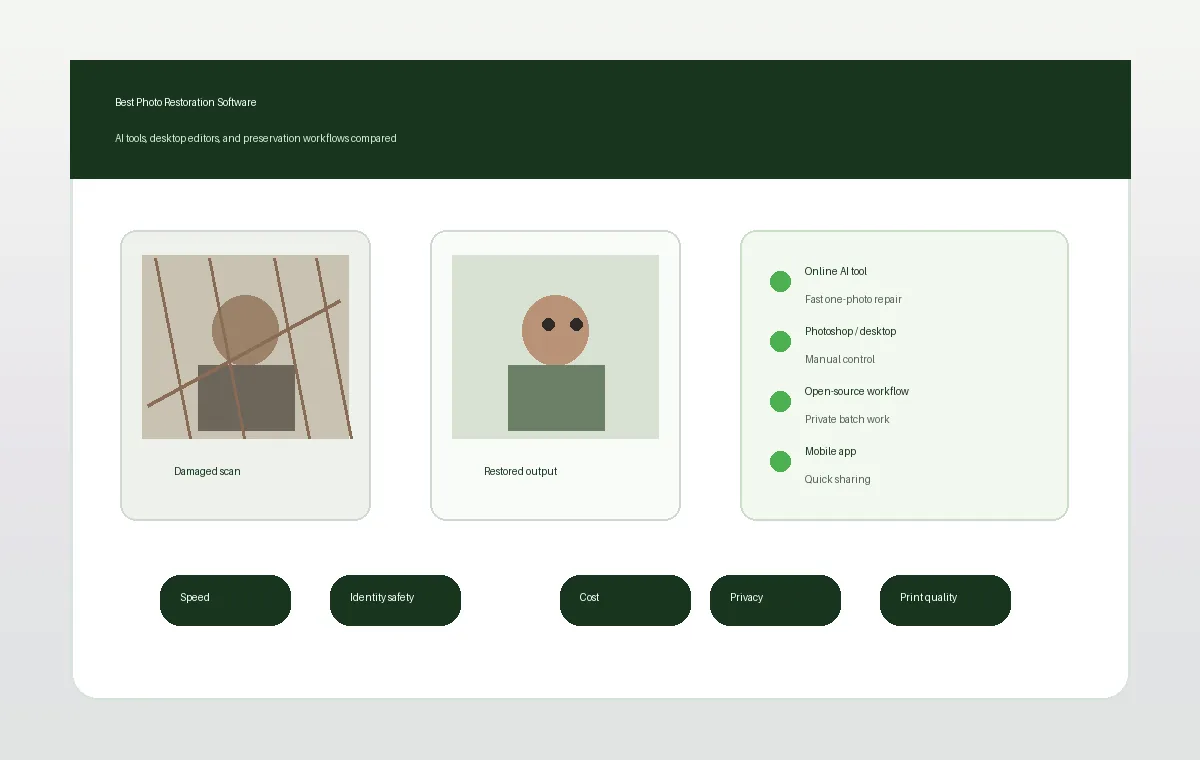
Table of Contents
- Quick Picks: Which Photo Restoration Software Should You Use?
- Photo Restoration Software Comparison Table
- How to Choose the Best Software for Your Photo
- Recommended Workflow Before You Restore
- Privacy, Identity, and Historical Accuracy
- Free vs Paid Photo Restoration Software
- Useful Sources for Evaluating Restoration Tools
- Frequently Asked Questions
- Choose the Least Aggressive Tool That Solves the Photo Problem
Quick Picks: Which Photo Restoration Software Should You Use?
Start by matching the tool to the risk of the photo. A casual faded snapshot needs a different workflow from a cracked wedding portrait or a one-of-a-kind archive scan.
| Best for | Recommended option | Why it fits | Watch out |
|---|---|---|---|
| Fast family-photo cleanup | Online AI photo restoration | Best balance of speed, simple upload, scratch repair, color recovery, and face clarity. | Check the face against the original before downloading. |
| Precise manual repair | Photoshop or Affinity Photo | Layers, healing tools, masks, and non-destructive edits help with valuable originals. | Requires editing skill and more time. |
| Free manual learning | GIMP | No subscription, strong clone/heal tools, good for learning restoration basics. | Automatic AI restoration is limited. |
| Private repeatable workflow | ComfyUI or local open-source tools | Runs locally and can be repeated across batches with controlled settings. | Setup, models, and VRAM can be difficult. |
| Quick phone sharing | Mobile restoration app | Convenient for casual scans and social sharing. | Compression and face changes are harder to audit. |
Use the least aggressive option that solves the visible damage.
For irreplaceable originals, scan once at high quality and keep the untouched file. Work only on a copy.
Need the Fast Option?
If you have one family photo with scratches, fading, blur, or small tears, start with the online AI restoration tool and compare the result to the original before trying heavier software.
Restore Old Photos NowPhoto Restoration Software Comparison Table
The best software for photo restoration is rarely one universal winner. Online AI is strongest for speed, Photoshop-style editors are strongest for manual repair, and local workflows are strongest for privacy and repeatability.
| Software type | Strengths | Best use case | Limitations |
|---|---|---|---|
| Online AI restoration | Fast upload, automatic scratch repair, face clarity, color and contrast recovery | Family users who want a restored copy in minutes | Less manual control; review privacy terms |
| Photoshop / Affinity Photo | Healing brush, clone tools, layers, masks, color correction | High-value photos that need careful manual repair | Subscription or purchase cost; learning curve |
| GIMP | Free manual editing, clone/heal tools, open file formats | Learning restoration and light cleanup without paying | No built-in modern AI workflow |
| ComfyUI / open-source AI | Local processing, repeatable nodes, batch control | Technical users and private archives | Setup complexity, model management, GPU limits |
| Mobile apps | Fast capture and sharing from phone | Low-risk casual photos | Compression, small-screen review, identity drift risks |
How to Choose the Best Software for Your Photo
Choose by damage type first. Scratches and dust need cleanup or inpainting. Faded photos need tonal recovery. Blurry faces need conservative face restoration. Missing corners need manual masks rather than a global enhancement.
A practical decision rule:
- Use online AI when speed matters and the photo is not highly sensitive.
- Use Photoshop, Affinity Photo, or GIMP when you need to repair only selected areas.
- Use ComfyUI or local tools when private processing, batch work, or repeatable settings matter.
- Use a mobile app only when the source photo is low risk and the output is for sharing rather than archiving.
If the photo includes a face, judge the result at full size. A tool that makes the image sharper can still be wrong if it changes the person.
Recommended Workflow Before You Restore
Scan or photograph the original in good light, crop borders, run a conservative restoration first, compare faces and clothing against the original, then export one web copy and one high-resolution archive copy.
- Scan or photograph the original in good light, then save the untouched file.
- Crop borders and rotate the scan before AI repair so the tool focuses on the photo.
- Run a conservative restoration first; avoid maximum strength settings on portraits.
- Compare eyes, mouth, age, clothing, and background details against the original.
- Export a web copy for sharing and keep a higher-resolution copy for printing.
For a simple start, try AI old photo restoration. For specific problems, use remove scratches from photos, colorize old photos, or old photo enhancer.
Privacy, Identity, and Historical Accuracy
Privacy matters because family photos can include faces, addresses, uniforms, handwritten notes, and cultural context. Online tools are convenient, but a local workflow gives more control over where files are processed.
Identity-safe restoration checks:
- Keep a copy of the original scan beside every restored output.
- Reject outputs that make the person younger, change eye shape, alter expression, or modernize clothing.
- Treat colorized black-and-white photos as plausible color, not verified historical color.
- For archive work, document which tool and settings were used.
Free vs Paid Photo Restoration Software
Free tools are excellent for learning and light cleanup, but they can cost time. Paid tools often save time through automatic repair, better exports, or professional editing features.
| Budget | Good fit | When to upgrade |
|---|---|---|
| Free | GIMP, trial tools, limited online restorations | Upgrade when damage is severe or the workflow takes too long. |
| Pay per use | Online AI restoration credits | Good for occasional family photos without a subscription. |
| Subscription or desktop license | Photoshop, professional editors, advanced AI suites | Best when restoration is recurring, commercial, or print-focused. |
Useful Sources for Evaluating Restoration Tools
When comparing tools, prefer official documentation and clear privacy policies over before-after galleries alone. Adobe, GIMP, and ComfyUI all publish documentation that helps you understand tool limits.
Useful external references:
Frequently Asked Questions
Choose the Least Aggressive Tool That Solves the Photo Problem
The best software for photo restoration is the one that fixes the visible problem without rewriting the memory. Start with a fast AI restoration when you need a clean family copy, use Photoshop or Affinity Photo when you need manual repairs, choose ComfyUI or open-source tools when privacy and repeatable control matter, and keep the original scan untouched. If the result changes the face, age, clothing, or important background details, step back to a gentler method.

Sarah Mitchell, AI Photo Restoration Writer
Sarah writes about AI photo restoration, family-photo preservation, and practical workflows for repairing old images without losing identity or historical context.