To restore faded photos, start with a clean high-resolution scan, correct contrast before color, remove yellow or magenta casts gently, and keep the original scan untouched. AI tools can recover a lot of faded detail, but the safest results come from comparing every edit against the real print.
Quick answer: scan at 600 DPI or higher, fix exposure and contrast first, neutralize the color cast, repair scratches only after tonal recovery, then use AI restoration or manual Photoshop-style edits on a copy.
Table of Contents
- Quick Answer: Best Workflow for Faded Photos
- Scan the Faded Print Before Editing
- Choose the Right Fix for the Type of Fading
- AI Restoration vs Photoshop-Style Manual Edits
- Step-by-Step Faded Photo Restoration Workflow
- Practical References for Editing and Preservation
- Frequently Asked Questions
- Restore Color, But Keep the Memory Honest
Quick Answer: Best Workflow for Faded Photos
A faded photo usually needs tonal recovery before anything else. If you sharpen, colorize, or run heavy face restoration too early, the tool may invent detail or lock in the wrong color balance.
| Problem | First fix | Avoid |
|---|---|---|
| Low contrast | Adjust black point, white point, and midtones | Over-sharpening a washed-out scan |
| Yellow paper | Neutralize paper tone after preserving a master scan | Making every white area pure white |
| Magenta or green cast | Use color balance or curves in small steps | One-click saturation boosts |
| Faded faces | Recover contrast, then use light AI face repair | Changing eyes, mouth shape, or age cues |
Treat faded photo restoration as a sequence, not a single filter.
For most family prints, the practical order is: clean the glass, scan the print, make a working copy, restore contrast, balance color, repair damage, then compare the result with the untouched scan.
Scan the Faded Print Before Editing
A faded print contains weak information. A poor phone capture or compressed social-media copy removes even more of it. Use a flatbed scan at 600 DPI for normal prints and 1200 DPI for small portraits, wallet photos, or images you plan to crop.
Before editing, save:
- An untouched TIFF or PNG master file.
- A working copy for AI restoration or Photoshop edits.
- A smaller JPEG or WebP copy for sharing.
- Notes about the date, people, place, and original color clues if the family knows them.
If the photo is stuck in an album, framed behind glass, or too fragile to remove, use a phone scanning app with glare control. Keep the camera parallel to the photo and shoot in soft indirect light.
Choose the Right Fix for the Type of Fading
Different faded photos need different corrections. A black-and-white portrait that has gone flat needs contrast and dust cleanup. A 1970s color print may need red, green, and blue channels balanced separately. A yellowed album photo may need paper-tone control before color correction.
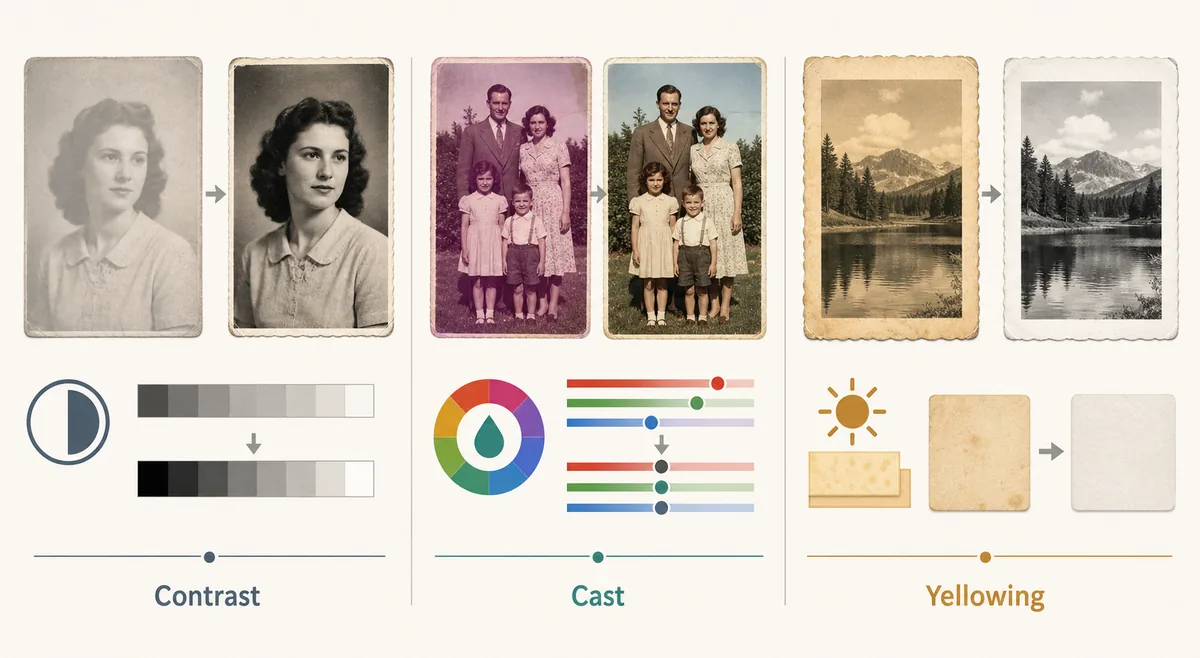
| Fade type | What it looks like | Best restoration move |
|---|---|---|
| Washed-out black and white | Gray shadows, weak faces, no deep blacks | Use levels or curves before sharpening. |
| Color cast | Entire image turns red, green, blue, or magenta | Balance channels slowly and check skin tones. |
| Yellowed paper | Borders and highlights look tea-colored | Preserve texture but reduce the cast in copies. |
| Sun-faded print | One side is much lighter than the other | Use local masks or AI restoration carefully, then review faces. |
This is why one-click saturation rarely gives the best result.
Have a Faded Scan Ready?
Use the AI restoration tool after you save the original scan. A better scan gives the model more real color and texture to recover.
Try AI Photo RestorationAI Restoration vs Photoshop-Style Manual Edits
AI restoration is fastest when the print is faded but still has recognizable faces, clothing, and background shapes. It is especially useful for combining light scratch cleanup, contrast recovery, and face-detail repair in one workflow.
Manual editing tools such as levels, curves, color balance, dust removal, and clone/heal brushes give more control when the photo has uneven fading or when historical accuracy matters. A good workflow can use both: manual tonal correction first, AI repair second, and a final manual review.
Use AI first when:
- The photo is faded evenly across the whole print.
- You need a quick family-sharing version.
- The main issue is soft contrast plus light scratches.
- You can compare the AI result with the original scan.
Use manual edits first when:
- Only one side is faded by sunlight.
- The paper has stains, silvering, or handwritten notes.
- Skin tones look wrong after a one-click correction.
- The photo is important enough to preserve every identity cue.
Step-by-Step Faded Photo Restoration Workflow
- Open a copy of the scan, never the master file.
- Crop only after saving the full original border if handwriting or dates matter.
- Set black and white points gently so shadows return without crushing clothing or hair.
- Adjust midtones to bring faces forward.
- Correct color cast in small channel changes instead of pushing saturation.
- Repair scratches, dust, and cracks after tonal recovery.
- Run AI face or texture repair lightly, then compare eyes, mouth, age, and expression with the scan.
- Export a web copy and a print-ready copy separately.
If the restored version starts to look like a new AI portrait instead of the same old photograph, reduce the strength and return to the previous step.
Practical References for Editing and Preservation
Adobe and Corel both document manual restoration concepts such as color correction, healing, and tonal adjustment. Preservation-oriented digitization guidance also emphasizes scanning and keeping a master file before making edits.
Useful references:
Frequently Asked Questions
Restore Color, But Keep the Memory Honest
The best faded photo restoration is restrained. Recover enough contrast and color for the person, clothing, handwriting, and setting to feel clear again, but keep a master scan so future edits can always return to the original evidence.

Sarah Mitchell, AI Photo Restoration Writer
Sarah writes about AI photo restoration, old family-photo preservation, scanning workflows, and practical ways to repair faded images without changing identity.